显示标签为“cellphone”的博文。显示所有博文

2014年12月20日星期六

Differences Between iPhone 6 and iPhone 6 Plus LCD Assembly

Differences Between iPhone 6 and iPhone 6 Plus LCD Assembly


Everyone can Use Coupon Code(ETS8OIID) for orders over $50 to buy brand new original cellphone replacement parts at www.etradesupply.com


Since the iPhone 6 and iPhone 6 Plus were released this past September, we have noticed some obvious and some not so obvious differences between the two, in particular the screens. We all know that the iPhone 6 Plus has a larger screen size, which enables a larger viewing area for playing games, watching videos or even taking pictures. However, for one-handed performance, the iPhone 6 is undoubtedly a better choice, but with a higher resolution the iPhone 6 Plus’ screen is much sharper and brighter, quoted from users.
iphone 6 and iphone 6 screen comparison chart
From the chart, we can see that the main differences are the screen sizes and resolutions. Apart from those specs, what other differences do they have? Let’s take an informative tour of the iPhone 6 and iPhone 6 Plus’ LCD Assemblies.
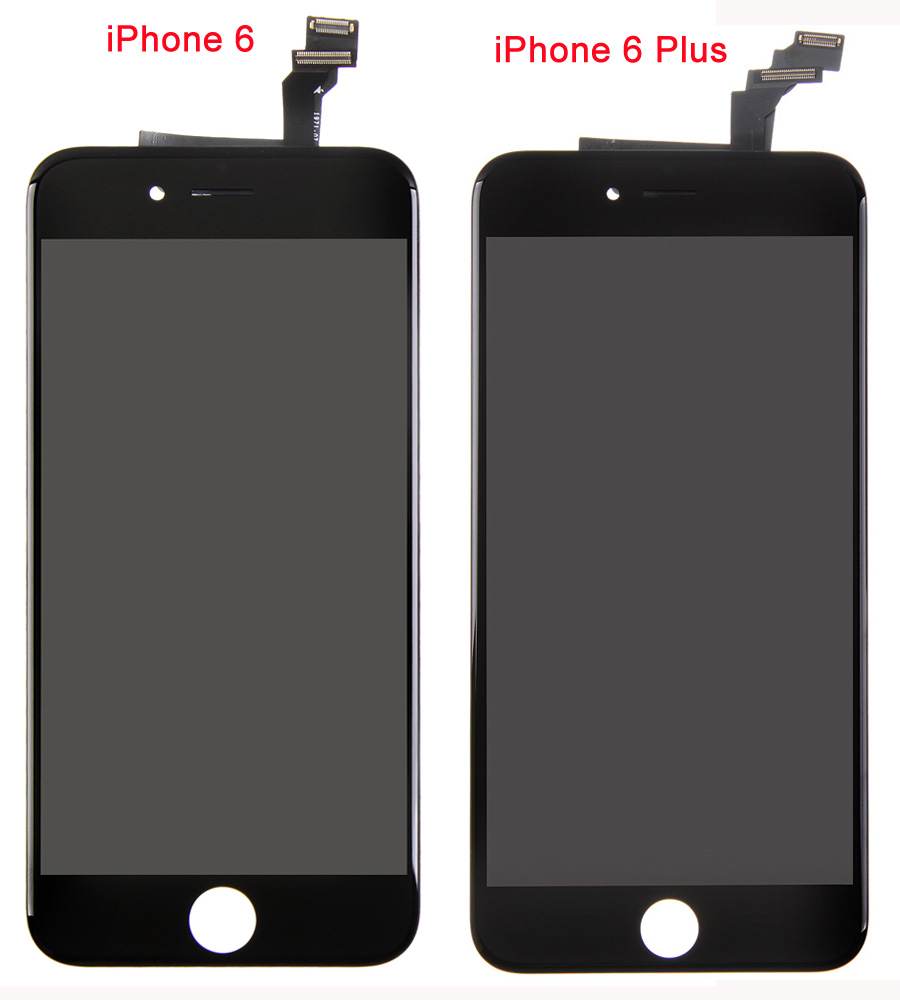
iphone 6, 6 Plus Screen Comparison 1
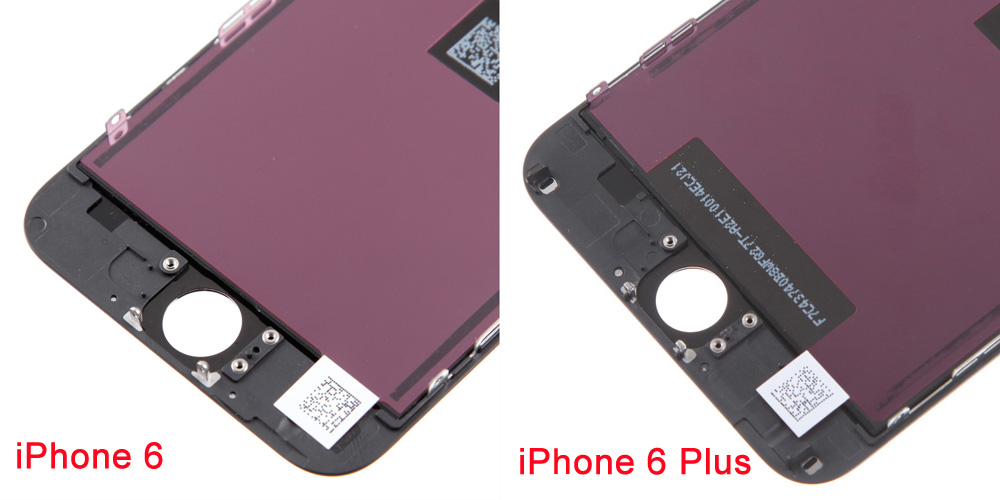
At first glance, the iPhone 6 LCD Assembly looks the same as the iPhone 6 Plus LCD Assembly, yet, differences still can be seen from the back sides. Obviously, one of the iPhone 6 QR Codes is near the top, while the iPhone 6 Plus has its position reversed.
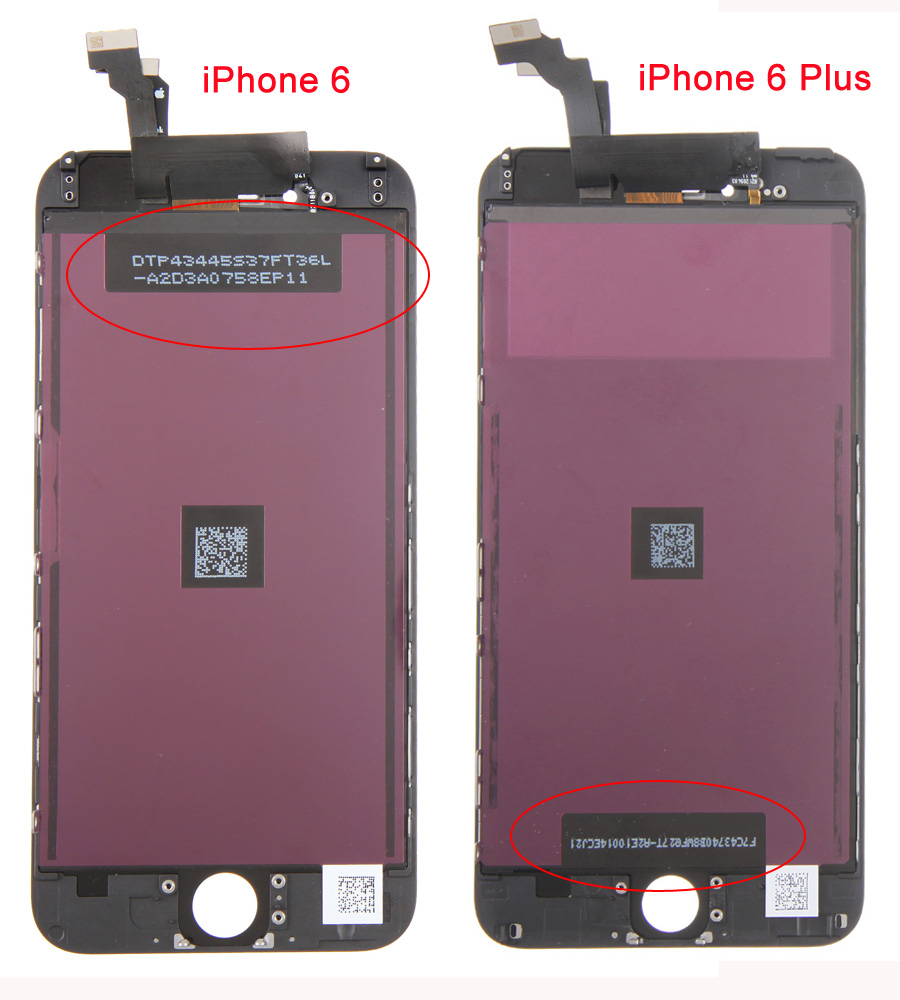
iphone 6, 6 Plus Screen Comparison 2
Looking at the picture below, we can see that the iPhone 6 shares exact the same Home Button hole with the iPhone 6 Plus. Perhaps their home buttons are compatible with each other. After careful examination and tests, we proved that the iPhone 6 Home Button Assembly with Flex Ribbon can be used on the iPhone 6 Plus. So if your iPhone 6 Home Button unfortunately fail to function, you can buy an iPhone 6 Plus Home Button Assembly with Flex Ribbon replacement instead.
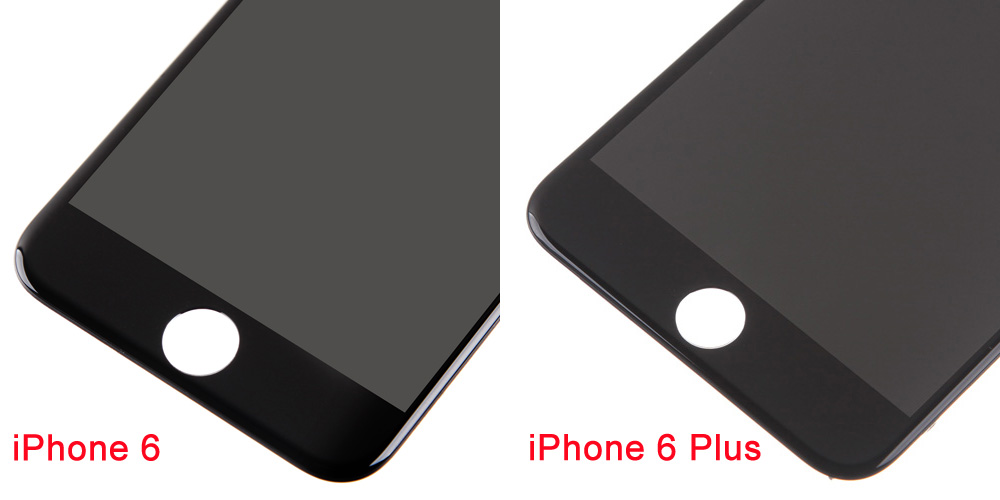
iphone 6, 6 Plus Screen Comparison 6
Exploring deeper, we can see that the iPhone 6 and iPhone 6 Plus LCD and Digitizer Flex Ribbons are different shapes, as well as the frames. So, the iPhone 6 LCD Frame and iPhone 6 Rear Housing are also different from the iPhone 6 Plus’ internal design even aside of the obvious size difference. That’s to say, Apple has spared no extra efforts, the iPhone 6 Plus is not just a “bigger than bigger” iPhone 6.
iphone 6, 6 Plus Screen Comparison 4
iphone 6, 6 Plus Screen Comparison 5
All in all, the iPhone 6 and iPhone 6 Plus have common Home Buttons even though their screens have apparent differences such as size, resolution, design etc.
If you want to learn more information besides a screen comparison, please read our other article:What are the Differences Between iPhone 6 Plus, iPhone 6 and iPhone 5S

2014年12月15日星期一

7 Common Nexus Lollipop Problems & How to Fix them

7 Common Nexus Lollipop Problems & How to Fix them


Everyone can Use Coupon Code(ETS8OIID) for orders over $50 to buy brand new original cellphone replacement parts at www.etradesupply.com


As Google is rolling out Android 5.0.1, the common issues in the Nexus series will be fixed. We’ve rounded up the most common lollipop issues so far, together with the fixes you can try to make your devices work smoothly again.
1.    How to save more battery life.
lollipop_battery_saving
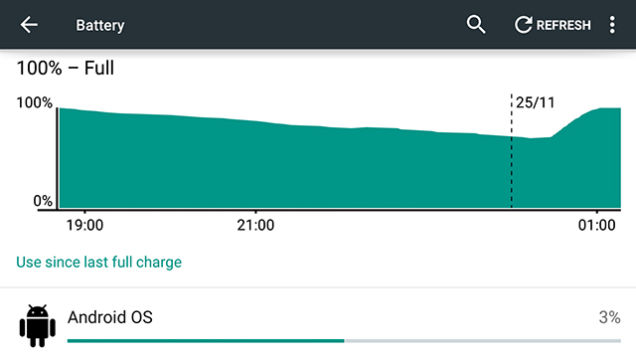
One of the features in Lollipop is the battery saving mode. But this mode can’t solve battery drain problem. Fortunately, you can use these tips to eliminate abnormal battery drain.
Most abnormal battery drain is caused by third-party applications. These Apps behave poorly and constantly work in the background
. So first of all, you have to keep your eyes peeled the the Apps and services taking up your battery.
You can check them out in the battery section in the setting menu. You can also choose to download the latest version app with the fix.
2.    How to fix Lollipop Bluetooth issue.
Many Nexus users complained about Bluetooth connection issues. First, you may want to try switching your Bluetooth off and on, but that may not always work. Next you can try and clear the Bluetooth cache, to do so follow these steps: Settings -> Apps -> Scroll over to All -> Select Bluetooth Share -> Clear Cache. Then you need to restart your device. Additionally, you can choose to clear data from the same screen, but then you will need to re-pair all your accessories.
 
3.    How to fix Nexus Cellular Data problem
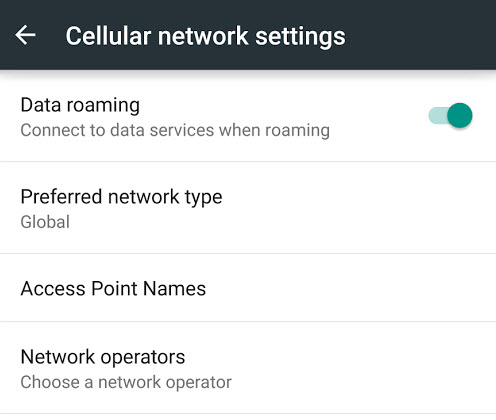
APN-Settings-Lollipop
First, we recommend turning on Airplane mode then turning it off again after 30s. If the screen still shows that no cellular data service is available, you can try powering your phone down and restarting. Many Nexus users have stated this solves the problem. But if that method didn’t work, you might need to contact your carrier. In some cases, the carrier is to blame for the problem.
Second, to access the APN setting, you can go to Settings/More/Cellular Networks settings/Access Points Names. You’d better reboot the phone afterwards, just to make sure all the settings get loaded probably.
 
4.    How to fix Wi-Fi problems.
wireless_issue1
Wi-Fi is a basic need for many people now, and Wi-Fi issue is a very common problem among smartphone owners. You should check whether your router and phone are compatible with each other. Then restart your router and try to switch the Wi-Fi on your phone off and back on after 10s. If you still can’t connect to the router, you’d better reboot your phone and try again.
If that doesn’t fix the issue, you may need to change your phone’s WIFI frequency. Click the vertical dot in the top right corner to bring up the advanced menu. You can set to automatic by choose the setting in the Wi-Fi frequency band.
5.    How to fix Nexus app issues.
lollipop_app_issue
Third party apps are often times the troublemakers. Some apps are not completely compatible with Lollipop yet. So they crash and are abnormally slow sometimes. It can be very annoying.
First, you can try to update the apps.
Second, you can try to reinstall the app or uninstall the app.
Third, if you continue to run into trouble with the app, you should contact the app developer to get the bug fixed.
 
6.    How to fix video playback problems.
video_play_back_issue
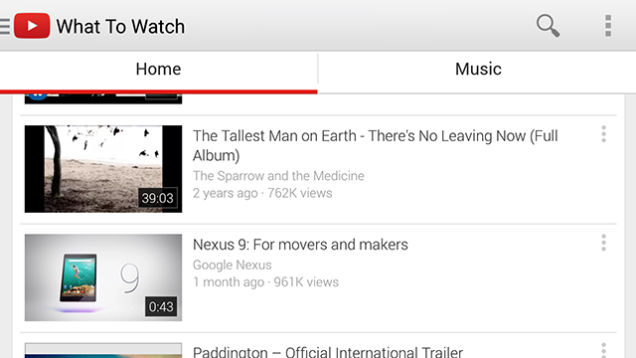
Video playback issues apparently plague Nexus users a lot. But there is still no good method to fixing it. For now you can only clear the video apps’ cache in your phone. Follow these steps: Settings -> Apps -> Select appropriate app -> Clear Cache.
7.    How to fix start-up issues.
Many Nexus users phones get stuck at the start-up screen. Sometimes getting stuck with colored dots for a long time. Unfortunately, there is no cure-all fix for this issue yet. Some Nexus 4 users told us that he has to wait for his phone to fix itself. However, It can take the phone several hours to correct itself. We don’t recommend Users to perform a factory reset as all your data will be gone, unless you back up your data in advance.
Source: GottaBeMobile